
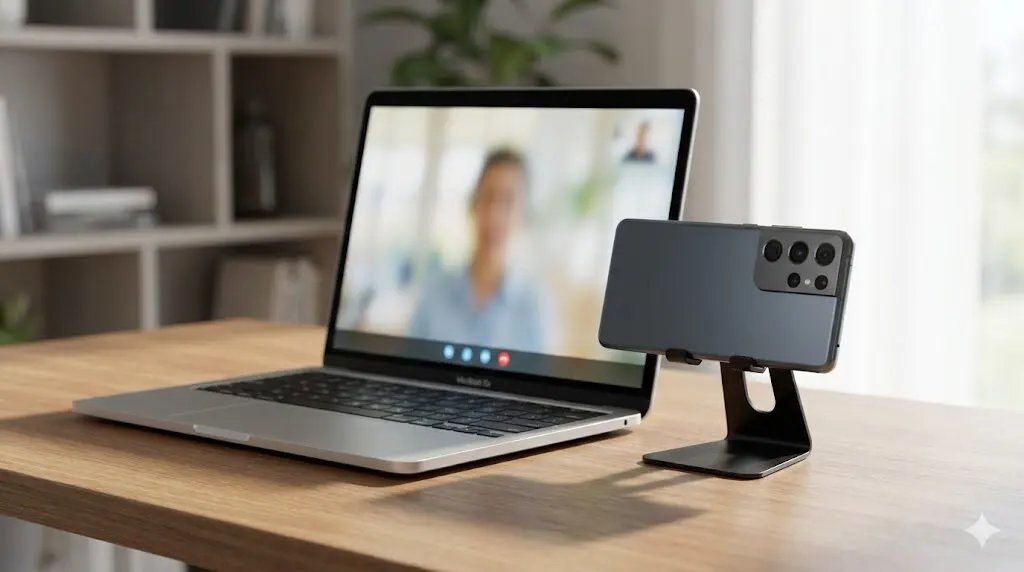
The camera built into your MacBook does the job, but only just. In video calls, especially indoors, it often produces an image that feels soft, dull, or washed out. If you’ve ever switched from your laptop to your phone mid-call and noticed the difference immediately, there’s a reason for that.
Android phones are built with far better camera hardware than most laptops. While Apple users can rely on Continuity Camera, Android users need a different approach. The good news is that you can still use your Android phone as a webcam on your MacBook, and once it’s set up, it works just as reliably.
This guide walks through the most practical options, explains when to use each one, and shows you how to get up and running without unnecessary detours.
Why an Android Phone Can Replace Your MacBook Webcam
Smartphones are designed to capture video in everyday lighting, from dim rooms to uneven indoor setups. Laptops aren’t. The thin lid of a MacBook leaves little room for a large camera sensor, which is why the image often breaks down when the lighting isn’t ideal.
Your Android phone, on the other hand, has:
- A larger sensor
- Better exposure control
- More advanced image processing
Using it as a webcam simply puts that hardware to work in a place where it’s needed more.
No Built-In Android Alternative to Continuity Camera
Unlike iPhones, Android devices don’t connect to macOS at the system level. There’s no native feature that automatically turns your phone into a webcam.
Instead, Android relies on apps that create a virtual camera on your Mac and stream video from your phone. This might sound complicated, but in practice it’s a one-time setup. After that, your Android phone appears as a selectable camera in most video apps.
The key is choosing a tool that fits how you plan to use it.
What You’ll Need Before You Start
You don’t need a complex setup or extra hardware. Most people already have everything required:
- An Android phone
- A MacBook (Pro or Air)
- A Wi-Fi connection or USB cable
- One webcam app
Once those pieces are in place, setup is straightforward.
The Best Android Webcam Apps for Mac
There are several options available, but two stand out for reliability and ease of use.
DroidCam: Quick and Flexible
DroidCam is often the first choice because it’s simple and widely supported. It works well for everyday meetings and casual calls, and you can connect either wirelessly or with a cable. The free version is enough for many users, while the paid version unlocks higher quality.
Camo: More Control, Cleaner Results
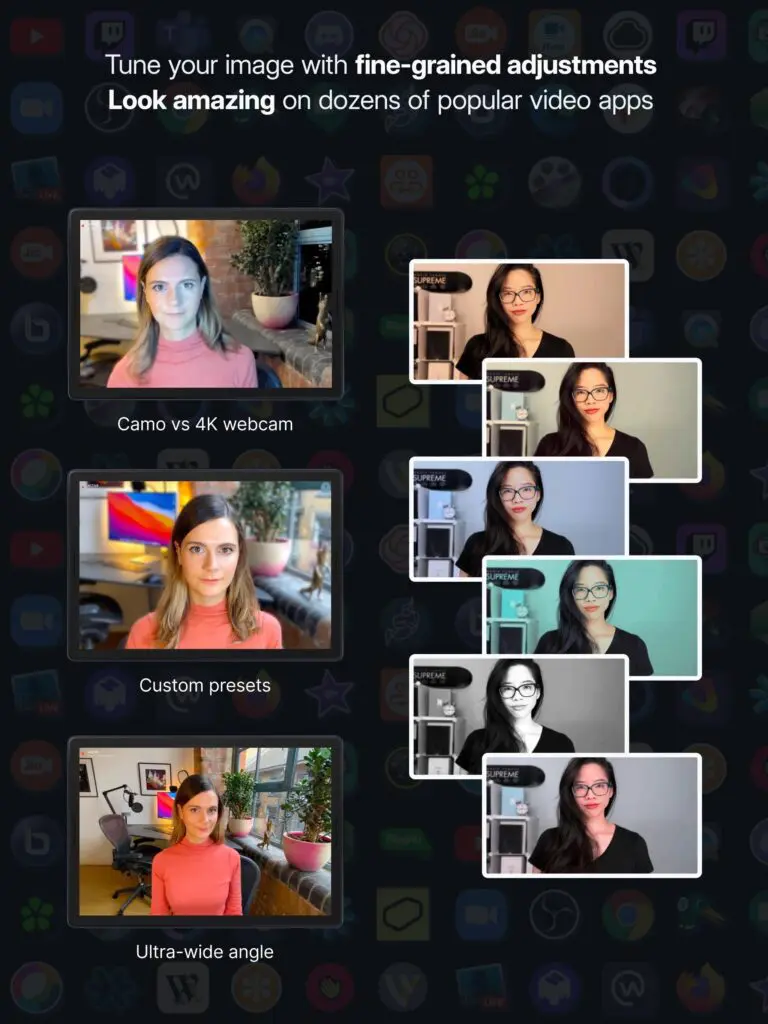
Camo focuses on video quality and control. It gives you tools to adjust framing, exposure, and color, which can make a noticeable difference for recordings or professional calls. Setup takes a bit longer, but the extra control can be worth it.
If speed matters more than polish, start with DroidCam. If presentation matters, Camo is the better option.
How to Use DroidCam as a Webcam on Mac
Follow these steps exactly.
Step 1: Install DroidCam
- Install DroidCam on your Android phone
- Install DroidCam Webcam on your Mac
- Open the app on both devices
Step 2: Connect Your Phone and Mac
- Make sure both devices are on the same Wi-Fi network
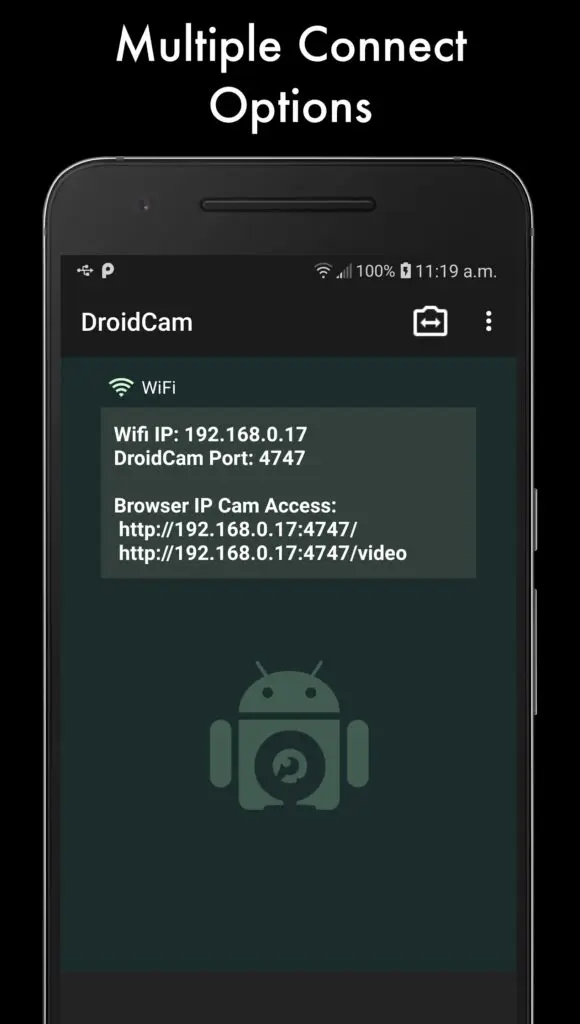
- Open DroidCam on your phone and note the IP address
- Enter the IP address in the Mac app
- Click Start
A USB connection can also be used if you prefer a wired setup.
Step 3: Choose DroidCam as Your Camera
- Open your video app
- Go to the camera settings
- Select DroidCam
Your Android phone is now supplying the video feed.
How to Use the Camo App with Android and Mac
Camo follows a similar flow, with more options once connected.
Step 1: Install Camo
- Install Camo on your Android phone
- Install Camo Camera on your Mac
- Open both apps
Step 2: Connect the Phone
- Connect your phone using Wi-Fi or USB
- Approve permissions on your phone
Step 3: Select Camo as the Webcam
- Open your video app
- Select Camo as the camera
- Adjust framing or settings in Camo Studio if needed
Wired vs Wireless: Which Connection Is Better?
Wireless connections are convenient and fast to set up. For most meetings, they work without issue and keep your desk clear of cables.
A wired connection adds stability and keeps your phone charged, which is useful during longer calls or recordings. If you notice lag or dropouts over Wi-Fi, switching to USB usually solves it.
For short calls, wireless is fine. For longer sessions, wired is more dependable.
Small Adjustments That Make a Big Difference
Once your phone is working as a webcam, a few changes can improve the result noticeably:
- Use the rear camera instead of the selfie camera
- Position the phone at eye level
- Keep it steady on a stand or surface
- Plug it in if you’ll be on camera for a while
These details matter more than most app settings.
Android Camera vs MacBook Webcam
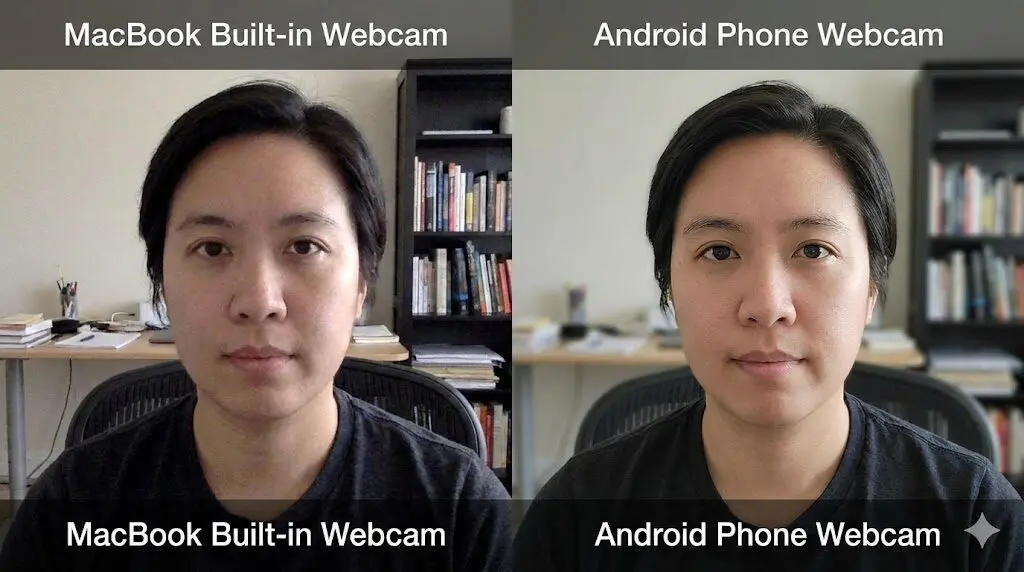
In typical indoor lighting, an Android phone often delivers a clearer image than a MacBook webcam. Faces retain more detail, colors look more natural, and the image holds together better when the light isn’t perfect.
The exact improvement depends on the phone model, but even mid-range Android devices usually outperform the built-in laptop camera.
Troubleshooting Common Issues
If something doesn’t work as expected, check the basics first:
- The app is running on both devices
- Both devices are connected properly
- The correct camera is selected in your video app
Restarting the app or switching from wireless to USB often resolves issues quickly.
Do You Need Extra Gear?
A mount or stand isn’t mandatory, but it helps with framing and stability. Anything that keeps the phone level and in place will work. You don’t need specialized accessories to get started.
Is This Setup Worth Using?
If you’re unhappy with your MacBook’s camera and already own an Android phone, this setup makes sense. It’s inexpensive, flexible, and noticeably improves video quality in most situations.
Once configured, switching to your phone as a webcam becomes a quick, routine step.
Frequently Asked Questions
Can I use my Android phone as a webcam on a MacBook wirelessly?
Yes. Most Android webcam apps, including DroidCam and Camo, support wireless connections over Wi-Fi. For short meetings and everyday calls, wireless works well. If you experience lag or disconnects, switching to a USB cable usually improves stability.
Is there an Android version of Apple’s Continuity Camera?
No. Continuity Camera is exclusive to Apple devices and does not work with Android phones. Android users need third-party apps to stream video to macOS, which is why tools like DroidCam and Camo exist.
Does this work on both MacBook Pro and MacBook Air?
Yes. The process is the same on MacBook Pro and MacBook Air. As long as your Mac can install the required app and your video software supports external webcams, it will work.
Which app is better: DroidCam or Camo?
It depends on what you need. DroidCam is quicker to set up and works well for meetings. Camo offers better control over image quality and framing, which is useful for recordings or professional calls. Both are reliable once configured.
Can I use my Android phone as a webcam with Zoom or Google Meet on Mac?
Yes. Once the app is set up, your Android phone appears as a regular webcam option inside Zoom, Google Meet, Microsoft Teams, and most other video apps. You simply select it from the camera settings.
Is it safe to use webcam apps like DroidCam on Mac?
Yes, when downloaded from official sources. Stick to the official website or app store, keep the app updated, and only grant necessary permissions. Avoid unofficial or modified versions.
Why does my Android webcam look laggy or choppy?
Lag is usually caused by a weak Wi-Fi connection or network congestion. Try moving closer to your router, closing other network-heavy apps, or switching to a wired USB connection.
Will using my phone as a webcam drain the battery?
Yes, especially when used wirelessly. For longer calls or recordings, it’s best to keep your phone plugged in to avoid interruptions.
Is the video quality always better than the MacBook webcam?
Often, yes, especially in indoor or low-light conditions. However, results depend on your Android phone’s camera and how well it’s positioned. Good lighting and stable placement make a noticeable difference.