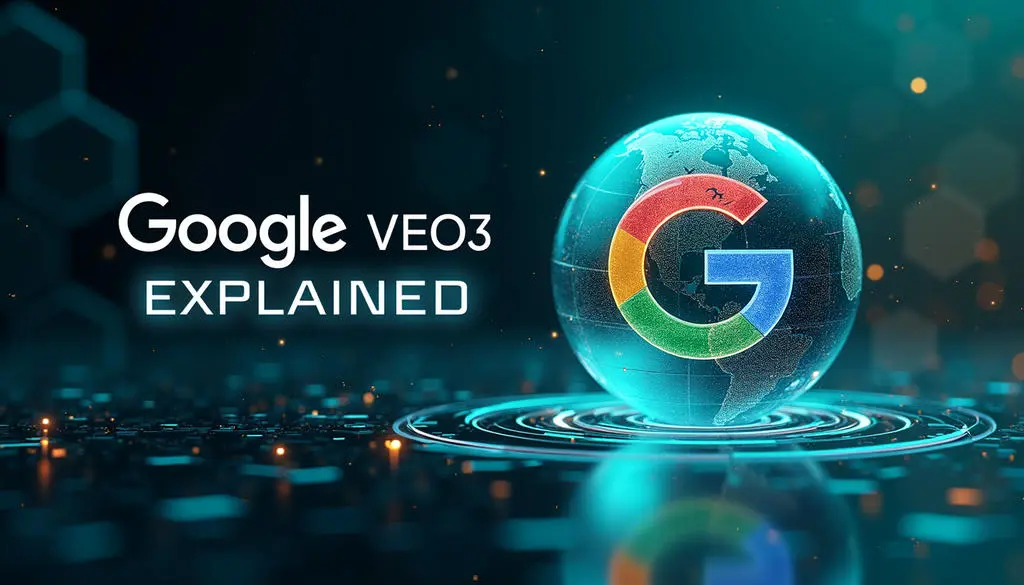
Artificial intelligence is transforming how videos are created, and veo 3 is one of the latest tools pushing those boundaries even further. Developed by Google DeepMind, veo 3 is an advanced AI video generation model that can create high-quality, realistic videos from simple text prompts.
This technology allows creators, marketers, and businesses to produce video content faster and more efficiently, without traditional filming or editing.
What Is Veo 3?
If you’re wondering what is veo 3, it’s an advanced AI video generation model developed by Google DeepMind that can create realistic, high-quality videos from simple text prompts.
In other words, Veo 3 allows you to type a description of a scene, and the AI will generate a video that matches it. Instead of filming with a camera, everything is created digitally using artificial intelligence.
This works through AI video generation technology, where the model analyzes your prompt, understands elements like objects, environments, lighting, and motion, and then generates individual frames that form a complete, natural-looking video. The result often looks like real footage rather than animation.
Veo 3 is designed for content creators, marketers, businesses, and filmmakers who want to produce videos faster and more efficiently. It’s also suitable for beginners who don’t have experience with filming or video editing, making professional video creation more accessible.
Its core capabilities include generating realistic scenes, understanding cinematic camera movements, maintaining visual consistency, and turning simple ideas into professional-looking videos within minutes. This makes Veo 3 a powerful tool for anyone who wants to create video content without the traditional time, cost, and complexity of video production.
How Does Veo 3 Work?
Veo 3 uses advanced AI to turn written prompts into realistic videos. Instead of filming scenes manually, you simply describe what you want, and the AI generates a video that matches your instructions. It understands visual details, motion, lighting, and cinematic styles to produce perfect results.
This is how Veo 3 works:
- Text-to-video generation – Veo 3 converts written text into fully generated videos by creating individual frames that form a complete and realistic sequence.
- Prompt-based creation – everything starts with a prompt. You can describe a scene, action, environment, or camera angle, and the AI uses that information to generate the video.
- Video quality and output style – Veo 3 is designed to produce high-quality, cinematic visuals with realistic motion, lighting, and detail. This can make your videos look like real footage.
- Customization features – users can influence the style, mood, camera movement, and overall look of the video through more detailed prompts and creative direction.
- Processing workflow – once you enter your prompt, the AI analyzes it, generates the video frames, processes the sequence, and delivers the final video output, usually within minutes depending on complexity.
How to Use Veo 3 (Step‑by‑Step Guide)
If you’re wondering how to use veo 3, the process is simple and doesn’t require video editing experience. If you want to create one, follow these steps:
Sign up or access the platform
First, you need access to Veo 3 through supported platforms such as Google Labs or other Google AI tools where the model is available. Sign in with your Google account and open the video generation interface.
Enter your prompt
In the prompt field, type a clear description of the video you want to create. For example: “A cinematic shot of a car driving on a mountain road at sunset, drone view, realistic style.”
If you give a detailed prompt, the results will be much better.
Adjust settings
Depending on the platform, you may be able to customize settings such as video length, style, camera angle, or visual quality.
Generate the video
Click the Generate button, and Veo 3 will begin creating your video. The AI processes your prompt, generates frames, and assembles them into a complete video.
Export and edit your video
Once the video is ready, you can preview it, download it, or edit it further using video editing tools.
How to Use Veo 3 for Free
If you want to know how to use veo 3 for free, there are several ways to access it without paying upfront. However, all free options come with limits such as credits, video length restrictions, or daily generation caps.
Here’s a quick breakdown of the main free access methods:
Free trial options
Google offers free trials through platforms like Google Cloud and Gemini. New Google Cloud users receive $300 in free credits valid for 90 days, which can be used to generate videos with Veo 3.
Some Gemini plans also include free trial periods that allow limited video generation before requiring payment.
Usage limits on free plans
Free users are usually limited in how many videos they can create. For example, some trial and student tiers allow only 3 videos per day, up to 8 seconds each, and are often capped at 720p resolution.
Free users may also receive monthly AI credits that reset regularly, but restrict how much video you can generate.
Credit-based system
Veo 3 typically works on a credit system, where each generated video uses credits depending on length and quality. Free credits can cover testing and small projects, but once they run out, you need to upgrade or buy more credits.
Demo and limited free access
Some platforms, including Gemini and Google AI Studio, offer limited demo access with daily generation limits or restricted features. This allows users to try Veo 3 without paying but with reduced quality, watermarks, or fewer customization options.
Educational access (student programs)
Eligible students may receive extended free access, including monthly credits or free trials through educational programs. However, these plans usually have restrictions on video length, resolution, and commercial use.
Veo 3 AI Free Unlimited: Is It Real?
If you’re searching for Veo 3 ai free unlimited, it’s important to be realistic: there is no official version from the developers that offers truly free, unlimited video generation. All legitimate access methods, such as free trials, credit allocations, or educational plans, come with usage, resolution, or video length limits.
Some people online advertise ‘unlimited free’ Veo 3 access, but these claims are usually misleading. They often point to unofficial tools or third‑party workarounds that aren’t supported by the official platform. Using such unofficial versions can carry risks, including:
Account bans – platforms like Google may suspend or terminate accounts that violate the terms of service by trying to bypass usage limits.
Security risks – third‑party sites claiming to unlock ‘unlimited’ access may expose your data, require unsafe downloads, or inject malware.
Instead of chasing unofficial unlimited access, the best legitimate alternatives are to use official free trials, credit‑based plans, or platform demos that let you explore Veo 3 within set limits.
How Much Is Veo 3?
When people ask how much is veo 3, the answer depends on which platform you use and how many credits or features you need.
Here’s a look at typical pricing tiers and models you might encounter:
Plan Type | Approx. Price (Monthly) | Credits / Features | Best For |
Basic / Plus | $19 – $37 | 4000 – 7,500 credits / 8-sec 1080p videos | Hobbyists/beginners |
Pro | $49 – $75 | 18,000 – 30,000 credits / faster processing | Frequents creators/small teams |
Enterprise / Max | $99 – $150+ | 40,000 credits or more | Businesses/agencies |
Free / Trial | $0 | Trial credits only (very limited) | Testing before paying |
Monthly vs Annual Plans: Annual plans save 20-40 % and grant all credits upfront.
Credits System: Each video generation uses credits. Longer or higher-quality videos cost more.
Subscription Models: Monthly subscriptions are flexible. Annual plans save money. Extra credits can be purchased if needed.
Enterprise Pricing: Large teams pay more for bigger credit packages and priority support.
Key Features of Veo 3
Here are the standout capabilities that make Veo 3 a powerful AI video tool:
- High‑resolution video output – generates videos in sharp and detailed quality suitable for professional use.
- AI motion generation – creates realistic movement and camera dynamics based on your text prompts.
- Prompt realism – understands and interprets descriptive prompts to produce natural‑looking scenes.
- Scene control – lets you influence elements like environment, lighting, and camera angles through your input.
- Editing flexibility – works well with video editors, allowing you to refine, cut, or enhance generated footage.
- Export options – provides multiple formats and download choices so you can use videos where you need them most.
Pros and Cons
Here’s a quick look at the strengths and limitations of using Veo 3:
Pros
Advanced video realism – produces videos that look natural and cinematic.
High‑quality rendering – generates sharp, detailed visuals.
AI automation – takes care of complex video production steps automatically.
Creative flexibility – lets you explore a wide range of ideas with simple text prompts.
Cons
Potential high cost – professional‑level plans can get expensive.
Rendering time – longer or more detailed videos may take time to process.
Limited free usage – free tiers and trials have strict caps on output.
Learning curve – crafting effective prompts may take practice.
Who Should Use Veo 3?
Veo 3 is a versatile tool that fits a range of users who want to create video content more efficiently:
- Content creators – bloggers, vloggers, and online educators, who are looking to produce videos faster.
- Filmmakers – directors and visual storytellers experimenting with AI‑assisted concepts or previsualization.
- Marketers – advertising and brand teams needing promotional videos and visuals at scale.
- Agencies – creative and digital agencies producing content for clients.
- Social media creators – TikTok, Instagram, and YouTube creators who need fresh and engaging video content.
- AI enthusiasts – tech fans and early adopters exploring the latest in generative video technology.
Alternatives to Veo 3
If you’re looking for options beyond Veo 3, several AI video tools offer different strengths depending on your needs.
Runway is ideal for creators and filmmakers who need advanced editing, scene control, and long-form videos. It combines text-to-video and image-to-video workflows. This can give you more manual control and professional-grade results.
Pika focuses on quick and creative clips perfect for social media. It’s fast, affordable, and packed with effects for short, engaging videos.
Sora (OpenAI’s cinematic tool) excels in high realism and narrative-driven videos, which makes it suitable for scripted or cinematic content.
InVideo is template-based and easy to use, making it great for marketers and small businesses who want to create promotional or ad videos without complex AI setups.
Synthesia specializes in avatar-driven videos and AI voice/lip sync, ideal for corporate, training, or explainer videos where human-like presenters are needed.
In short, Runway and Sora are best for cinematic or creative control, Pika for fast social content, InVideo for marketing simplicity, and Synthesia for professional business or educational videos.